
StarTech USB-A DisplayLink Dual 4K 60Hz Mini Dock
4.4Editor score
Compact Mini Dock Design
Dual DP 4K 60Hz
Includes Gigabit Ethernet
Discover the top Displaylink adapters for dual monitors. This guide compares features, compatibility, and performance to help you choose the right adapter.
Finding the right display adapter can transform your single screen laptop into a productive dual monitor workstation. Displaylink technology offers a reliable solution for extending your desktop across multiple screens without heavy graphics load.
We evaluated ten leading Displaylink adapters based on compatibility, video output quality, and ease of setup. Each product was reviewed for its ability to handle high resolutions and support various operating systems like Mac and Windows.
Each pick highlights key strengths and potential limitations to guide your decision. Prices and availability may change, so verify current details on the product pages before purchasing your next display adapter.
4.4Editor score

4.4Editor score

4.5Editor score
This side-by-side comparison highlights the core capabilities of each adapter. We examine resolution support, port types, and operating system compatibility to help you find the exact fit for your workflow.



The WAVLINK USB 3.0 or USB C to Dual HDMI adapter stands out as a top performer for users needing reliable dual monitor setups. It consistently delivers crisp 4K@60Hz visuals through a single port, making it a solid choice for productivity.
We may earn a commission when you buy through this link, at no additional cost to you.
Its hybrid 2-in-1 cable offers exceptional flexibility, connecting to USB-C, USB-A, Thunderbolt 3/4, and USB 4 ports. This versatility means you can use it across a wide range of devices without needing extra adapters.
While it excels at extending screens for work, it is not optimized for high-performance gaming or streaming protected content. This trade-off is acceptable given its primary focus on stable multitasking and office workflows.
For users with modern Mac laptops or Windows machines, this adapter is an excellent investment to break screen limitations. It provides the extra workspace needed for coding, spreadsheets, or creative projects efficiently.
The hybrid cable supports both USB-C and USB-A connections, making it future-proof for various laptop generations.
Delivering dual 4K@60Hz ensures smooth scrolling and sharp text on external monitors for professional use.
We may earn a commission when you buy through this link, at no additional cost to you.
The StarTech USB-A DisplayLink Dual 4K 60Hz Mini Dock is a standout budget option for users needing essential dual display functionality. It offers reliable video output without breaking the bank.
We may earn a commission when you buy through this link, at no additional cost to you.
Designed for portability, this mini dock fits easily in a bag and features an attached cable to reduce port strain. The included Gigabit Ethernet port is a unique benefit for stable internet connectivity.
One consideration is that it uses DisplayPort outputs, so you may need adapters for HDMI monitors. However, for most office setups, this is a minor hurdle given the low cost and performance.
Ideal for surface Pros or older laptops with USB-A ports, this dock provides an effective way to expand your workspace. It is a practical choice for budget-conscious professionals or remote workers.
Its compact form factor makes it perfect for commuters who need a reliable dual screen solution on the go.
The built-in Ethernet port offers a wired connection, ensuring stable network performance during video calls.
We may earn a commission when you buy through this link, at no additional cost to you.
The Plugable USB-C & USB-A Dual 4K HDMI Adapter is a premium choice designed for enterprise and home office reliability. It is backed by lifetime support, which is a significant value for long-term use.
We may earn a commission when you buy through this link, at no additional cost to you.
Its flexible connectivity allows direct use with modern USB-C laptops or the included adapter for older USB-A systems. This ensures compatibility across a wide range of devices without extra accessories.
While it is a strong performer for Windows and ChromeOS, it is not recommended for macOS users. If you are on a Mac, you may want to consider other options specifically validated for that system.
For businesses or professionals needing a dependable adapter with guaranteed support, this is an outstanding choice. The robust chipset and lifetime warranty make it a secure investment for daily productivity.
Access to lifetime North American support ensures any technical issues are resolved quickly by experts.
The ability to switch between USB-C and USB-A makes this adapter versatile for different laptop generations.
We may earn a commission when you buy through this link, at no additional cost to you.
The ACASIS USB C to Dual HDMI DisplayLink Adapter is tailored for users with modern Mac laptops needing dual display functionality. It effectively bypasses the single display limitation found in base models.
We may earn a commission when you buy through this link, at no additional cost to you.
Its inclusion of 100W Power Delivery means you can charge your laptop while using the extra screens. This makes it a convenient all-in-one solution for travelers and home office workers.
The adapter supports up to three additional USB-A ports for peripherals, enhancing connectivity without extra hubs. While it requires driver setup, the process is straightforward for most users.
Ideal for Mac users seeking an affordable dual monitor solution with charging capabilities, this adapter delivers solid performance. It is a practical choice for coding, multitasking, and general productivity tasks.
The 100W PD port keeps your laptop charged during long work sessions without needing an extra charger.
Three USB-A ports allow you to connect a mouse, keyboard, and flash drive simultaneously.
We may earn a commission when you buy through this link, at no additional cost to you.
The Plugable USB C to HDMI Adapter is recognized for enabling three total screens on supported Mac models. This capability makes it a top choice for power users needing maximum workspace.
We may earn a commission when you buy through this link, at no additional cost to you.
Built for traditional and hybrid office setups, it ensures stability during extended use. The lifetime support from Plugable adds significant value for businesses deploying these adapters across teams.
Users on macOS will need to install the driver and allow permissions, which is a standard requirement for DisplayLink. Once set up, it performs reliably for non-gaming tasks like coding and spreadsheets.
If you prioritize screen count and reliability over cost, this adapter is a strong contender. It delivers consistent performance for professional workflows and offers peace of mind with long-term support.
With laptop plus two external displays, you get three screens for unmatched multitasking efficiency.
Designed specifically for productivity apps, ensuring stable performance during daily work tasks.
We may earn a commission when you buy through this link, at no additional cost to you.
The WAVLINK USB 3.0/USB C to HDMI Universal adapter offers exceptional scalability for users needing multiple displays. You can connect up to six monitors across your system with one adapter per screen.
We may earn a commission when you buy through this link, at no additional cost to you.
Its audio input and output ports are a unique feature, allowing direct microphone and headphone connections. This adds convenience for users who want to manage audio without extra cables.
Compatible with a wide range of systems including Windows, macOS, and ChromeOS, it is versatile for mixed environments. The certified USB 3.0 GPU ensures consistent performance across connected screens.
Ideal for command center setups or users needing extensive screen real estate, this adapter scales well. It is a flexible choice for those who value high monitor counts and audio integration.
You can expand your workspace significantly by connecting multiple adapters for up to six total monitors.
Audio input and output allow you to connect headsets or microphones directly to the adapter.
We may earn a commission when you buy through this link, at no additional cost to you.
The ACASIS Dual DP DisplayLink Adapter is a highly rated option for users needing DisplayPort outputs with MacBook support. Its exceptional rating reflects strong performance and reliability in real-world use.
We may earn a commission when you buy through this link, at no additional cost to you.
With two DisplayPort ports delivering 4K@60Hz, it provides crisp visuals for design and work. The aluminum construction helps dissipate heat, ensuring stable operation during long sessions.
It also includes 100W Power Delivery for charging, making it a compact hub for power and video. Three USB-A ports add convenience for connecting peripherals without extra dongles.
For MacBook users with DisplayPort monitors or those willing to use adapters, this is a premium choice. The build quality and performance justify the investment for high-demand professional environments.
The aluminum alloy body helps maintain cool temperatures, ensuring stable video output during heavy use.
Combined with PD charging and USB ports, this adapter replaces the need for multiple separate accessories.
We may earn a commission when you buy through this link, at no additional cost to you.
The WAVLINK USB 3.0 & USB C to Dual HDMI adapter stands out for its security features with DL-Chip encryption. This makes it a preferred choice for corporate environments needing data protection.
We may earn a commission when you buy through this link, at no additional cost to you.
It delivers dual 4K@60Hz output for crisp visuals and supports Thunderbolt connections for fast data transfer. The wide compatibility across Windows, macOS, and ChromeOS makes it versatile for mixed teams.
While it requires driver installation, this step ensures secure and reliable operation. The security features provide peace of mind for handling sensitive information during daily operations.
Ideal for businesses prioritizing security and performance, this adapter offers robust protection alongside high-quality video. It is a trusted solution for professionals needing a secure dual-monitor workflow.
The DL-Chip encryption safeguards sensitive data, making it safe for secure corporate environments.
Compatibility with Thunderbolt ensures high-speed connectivity for modern laptops and fast performance.
We may earn a commission when you buy through this link, at no additional cost to you.
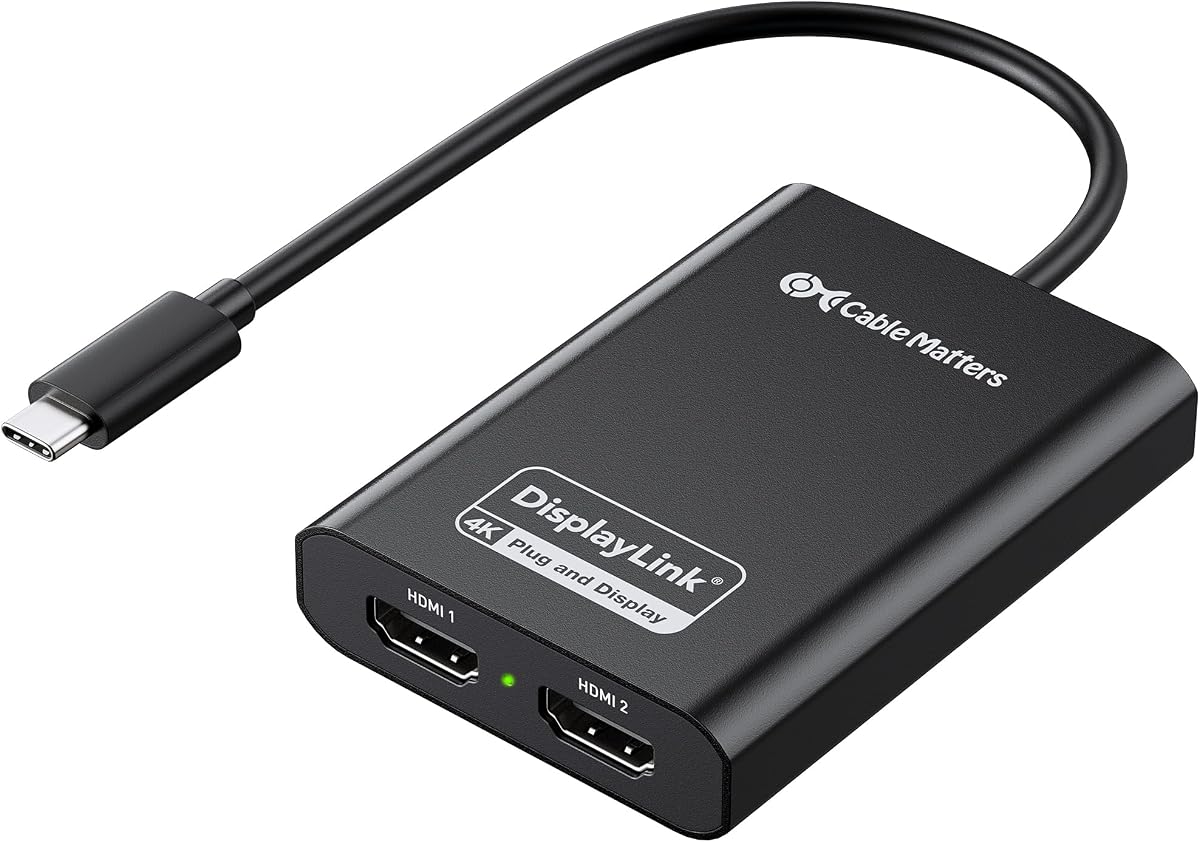
The Cable Matters USB C to Dual HDMI adapter is DisplayLink Certified, ensuring it meets strict performance standards. This certification provides confidence in its compatibility and stability for dual extended displays.
We may earn a commission when you buy through this link, at no additional cost to you.
Its USB 3.2 Gen 1 bandwidth delivers smooth visuals and eliminates flicker issues common with lower bandwidth adapters. The durable aluminum housing adds to its longevity and heat management.
Users on macOS must allow screen recording permissions, which is a standard requirement. With proper setup, it works well for multitasking and content creation across different operating systems.
Ideal for users seeking a certified and reliable adapter, this model offers consistent performance. It is a practical choice for those prioritizing stability and build quality in their workspace.
DisplayLink Certification guarantees that the adapter meets high standards for performance and support.
USB 3.2 Gen 1 bandwidth ensures smooth, flicker-free visuals for demanding workflows.
We may earn a commission when you buy through this link, at no additional cost to you.
The Sonnet DisplayLink Dual 4K HDMI Adapter is optimized for Mac users with M1 or M2 chips needing dual display expansion. It supports 4K @ 60Hz for crisp and smooth visuals.
We may earn a commission when you buy through this link, at no additional cost to you.
Audio support is included, allowing you to route audio to your external displays easily. Its compatibility with Thunderbolt ensures high-speed data transfer for efficient performance.
While it is designed primarily for specific Mac models, it performs reliably within that ecosystem. The stable video output makes it suitable for daily work and content creation tasks.
For Mac users with M1 or M2 laptops, this adapter offers a seamless way to expand workspace. It is a solid choice for those needing dependable dual monitor performance without extra complexity.
Full Thunderbolt support ensures high-speed performance and compatibility with modern Mac devices.
Built-in audio support allows you to connect sound to external monitors easily.
We may earn a commission when you buy through this link, at no additional cost to you.
Selecting the right Displaylink adapter requires understanding your system needs and the features offered. We cover key factors to help you make an informed choice.
Ensure the adapter supports your operating system and hardware generation. Check for Windows, macOS, or ChromeOS compatibility and confirm your computer has the required USB ports. Some adapters are optimized for Mac M1-M5, while others focus on Windows.
Always verify system requirements before purchasing to avoid driver or connection issues. This ensures your setup works smoothly from the start.
Look for adapters that support 4K@60Hz for sharp, smooth visuals. Ensure the ports match your monitors (HDMI or DisplayPort) and confirm the refresh rate matches your needs. Higher resolution ensures better clarity for work.
Choosing the right resolution prevents flicker and ensures your extended desktop looks professional.
Consider whether you need USB-C, USB-A, or Thunderbolt connectivity. Some adapters offer hybrid cables for greater flexibility across devices. Ensure the adapter matches your laptop's available ports to avoid extra dongles.
Selecting the correct port type simplifies setup and improves daily usability.
Most Displaylink adapters require driver installation on Windows and macOS. Confirm you are willing to download and install software for the adapter to work. ChromeOS often supports plug-and-play functionality.
Understanding this requirement helps you budget time for setup and avoid surprises.
If you want to charge your laptop while using external displays, choose an adapter with Power Delivery support. This eliminates the need for a separate charger and keeps your device powered during long sessions.
Power Delivery integration simplifies your desk setup and keeps your laptop charged.
Check the warranty duration and whether technical support is available. Lifetime support can be valuable for long-term reliability and troubleshooting. Look for brands with a strong reputation for customer service.
A solid warranty provides peace of mind and protects your investment.
Aluminum enclosures dissipate heat better and are more durable than plastic options. Consider the size and weight for portability if you travel. A compact design makes it easier to store in a bag.
Quality materials ensure the adapter stays cool and reliable over time.
Be aware that most Displaylink adapters do not support HDCP for streaming video like Netflix. If watching protected content is a priority, consider a standard adapter instead. This limitation is specific to DisplayLink technology.
Understanding this restriction helps you choose the right tool for your use case.
Start by downloading the latest DisplayLink driver from the official website. Install it before connecting the adapter to ensure full functionality on Windows and macOS.
Connect the adapter to your laptop's USB or Thunderbolt port. Attach your monitors via HDMI or DisplayPort and allow your system to recognize the new displays.
Keep the adapter clean and free from dust to maintain heat dissipation. Avoid bending the cable sharply to prevent damage and ensure long-term reliability.
Displaylink adapters are optimized for productivity and not designed for high-performance gaming. They may introduce input lag and do not support HDCP content streaming like Netflix.
Drivers enable the computer to process video data sent through the USB port. Without the correct driver, the adapter will not send signals to your external monitors.
Yes, some adapters allow up to six monitors total when using multiple adapters. Each adapter requires a separate USB port and driver installation.
Yes, several models are specifically designed to break the single display limit on MacBook Air M1. Ensure the product page mentions M1/M2/M3 support.
Some adapters include audio output or pass-through capabilities. Check the specs to confirm if audio is supported for your monitors or speakers.
HDMI adapters connect directly to monitors with HDMI ports, while DisplayPort adapters may require a cable for HDMI monitors. Choose based on your monitor inputs.
Most Displaylink adapters do not officially support Linux systems. Check specific product details for any community support or compatibility before purchasing.
The top picks offer reliable solutions for extending your workspace across multiple monitors. Each adapter has unique strengths whether you need budget options or premium support.
Prioritize compatibility and resolution support to match your specific laptop and workflow needs. Consider factors like Power Delivery and warranty for long-term value.
Prices and stock levels can change, so always check current details before buying. Select the adapter that best fits your daily professional requirements.