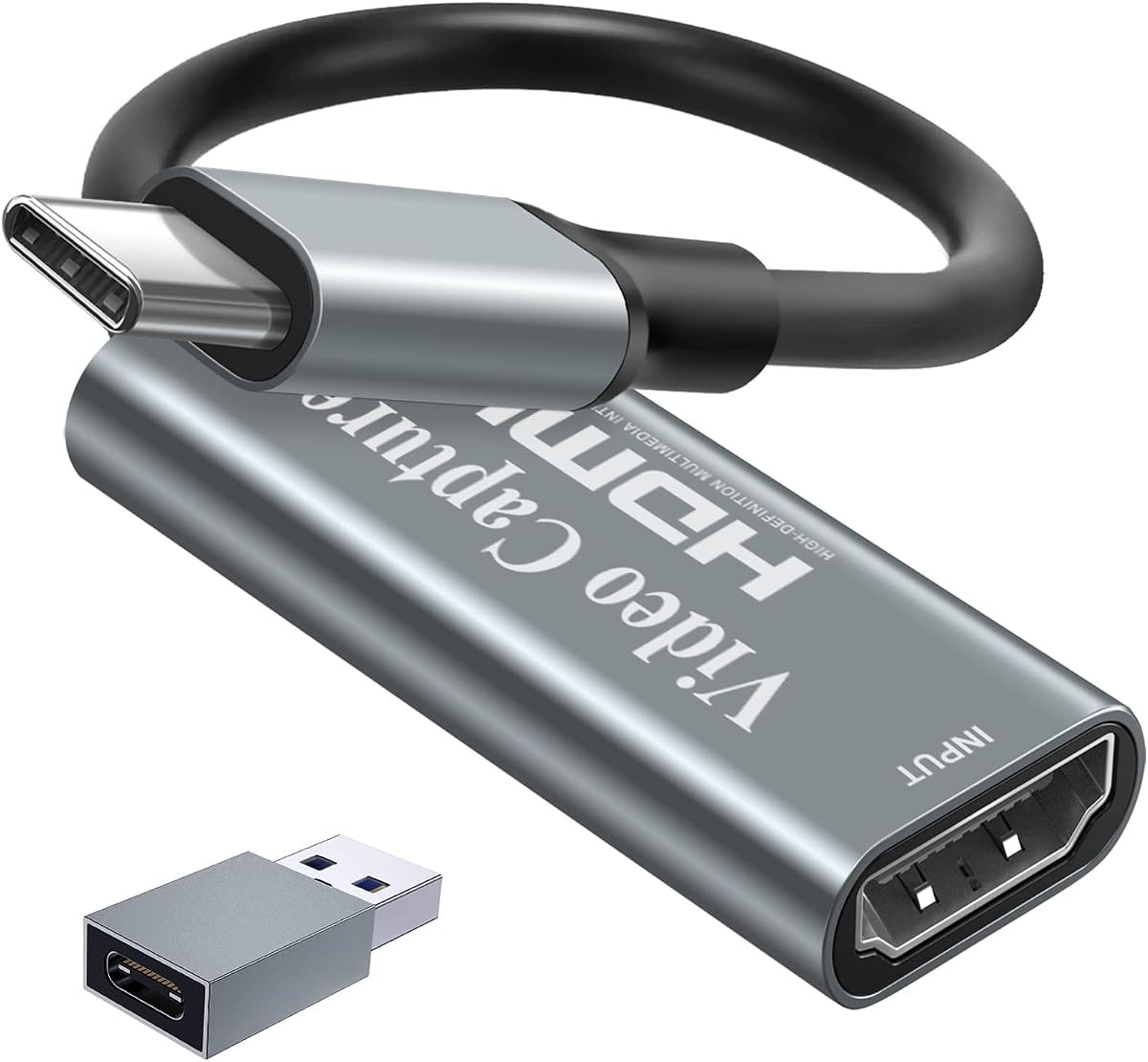
Papeaso Video Capture Card
4.2Editor score
1080P 60FPS Output
USB-C Connectivity
No Driver Installation
Compare the best capture card for Linux to stream or record gameplay from PS5 Xbox Switch and more on open source systems.
Finding a reliable capture card for Linux can be challenging since many devices prioritize Windows compatibility. This guide helps you select hardware that works seamlessly with open source operating systems for streaming and recording.
We evaluated ten top-rated models based on driver support resolution output quality and overall system compatibility. Each product was assessed for its ability to function without proprietary software on Linux distributions.
This list highlights key features pros and cons to help you make an informed decision. Prices and availability may change so verify current details before purchasing your next streaming setup.
4.2Editor score

4.4Editor score

4.2Editor score
The following table compares key specifications across all ten models to help you quickly identify the right hardware for your Linux based streaming workflow.




The UGREEN 4K@30Hz Loop Out HDMI Capture Card delivers reliable performance on Linux with solid 2K output. It achieves a 4.4 rating and supports seamless streaming without complex setup.
We may earn a commission when you buy through this link, at no additional cost to you.
Its dual USB-A and USB-C ports ensure flexible connections while the aluminum casing dissipates heat effectively during long sessions. The HDMI loop out enables zero-latency monitoring for gaming.
While it does not support Fire TV sticks and iPhone data capture requires specific protocols, these limitations are minor compared to its overall versatility. The device remains highly compatible with OBS and similar apps.
This card is ideal for Linux users needing consistent 1080P 60FPS or 2K 30FPS capture. We recommend it for anyone seeking balanced quality and ease of use.
Captures up to 2K 30FPS for sharp visuals without overwhelming your system.
Features both USB-A and USB-C for broad device compatibility.
We may earn a commission when you buy through this link, at no additional cost to you.
The acer USB 3.0 HDMI Capture Card offers exceptional value with 1080P 60Hz output suitable for streaming. It holds a 4.4 rating and supports YUY2 for better color accuracy.
We may earn a commission when you buy through this link, at no additional cost to you.
Its mic-in feature allows direct headset connection without adapters and it works flawlessly with major streaming apps on Linux. The device is lightweight and portable for on-the-go setups.
While the build is functional rather than premium and it caps at 1080P output for recording these trade-offs make sense at this price. It delivers smooth results without extra drivers.
We suggest this model for budget conscious users who need reliable 60Hz capture. It strikes a strong balance between affordability and performance for Linux streams.
YUY2 technology provides lifelike colors compared to MJPEG compression.
Direct mic-in support eliminates adapter needs for commentary.
We may earn a commission when you buy through this link, at no additional cost to you.
The Papeaso Video Capture Card provides an entry-level solution for Linux users seeking 1080P 60FPS capture. It has a 4.2 rating and requires no drivers for immediate use.
We may earn a commission when you buy through this link, at no additional cost to you.
Its USB-C design ensures compatibility with modern laptops and it captures up to 4K input sources without freezing. The compact form factor makes it easy to carry.
Although support resources are basic compared to premium brands and it comes with a basic adapter these are acceptable given the cost. It works well with OBS and VLC.
This card is perfect for beginners testing streaming on Linux. We recommend it for those prioritizing budget and simplicity over advanced features.
USB-C compatibility ensures fit with newer devices and laptops.
Delivers 60fps recording without lag or freezing issues.
We may earn a commission when you buy through this link, at no additional cost to you.
The Newhope USB 3.0 HDMI Capture Card ensures smooth 1080P 60FPS capture with 4K pass through capability. It is rated 4.2 and works well on Linux without drivers.
We may earn a commission when you buy through this link, at no additional cost to you.
Its mic-in port allows external commentary and the loop out supports real time monitoring on displays. It is compatible with PS5 Xbox and Switch for versatile gaming capture.
While it lacks premium features and has limited user feedback it meets essential needs for streaming. It delivers consistent performance without external power or complex setup.
We recommend this for users needing a simple pass through solution. It provides a reliable base for Linux gaming or video recording projects.
HDMI loop out enables zero delay display during recording.
Mic in supports external headsets for commentary.
We may earn a commission when you buy through this link, at no additional cost to you.
The Capture Card 4K HDMI delivers vibrant 1080P 60FPS video with low latency for gaming. It holds a 4.4 rating and works as a plug and play device on Linux.
We may earn a commission when you buy through this link, at no additional cost to you.
Its compact design suits creators who travel and it supports seamless passthrough for lag free play. Compatible software includes OBS Streamlabs and XSplit for quick streaming.
While the design is generic and lacks premium materials it performs reliably for standard capture. It avoids driver hassles and connects easily to modern systems.
We suggest this for mobile users needing a dependable card. It balances portability with performance for Linux content creation.
Lightweight design makes it easy to pack for events.
Works out of the box with common streaming software.
We may earn a commission when you buy through this link, at no additional cost to you.
The UGREEN 2K@30Hz capture card offers a 4.5 rating with 2K 30FPS and 1080P 60FPS options. It supports USB-A and USB-C for broad Linux compatibility.
We may earn a commission when you buy through this link, at no additional cost to you.
Its aluminum alloy casing shields against EMI and dissipates heat effectively. The device enables seamless streaming to Twitch and YouTube via OBS or VLC.
While it does not output true 4K recording and lacks Fire TV support these are minor for general users. It balances quality and durability well.
We recommend this for users wanting robust performance. It provides excellent stability for Linux based streaming or recording setups.
Durable conductors ensure excellent conductivity and corrosion resistance.
USB-A and USB-C ensure compatibility with various devices.
We may earn a commission when you buy through this link, at no additional cost to you.
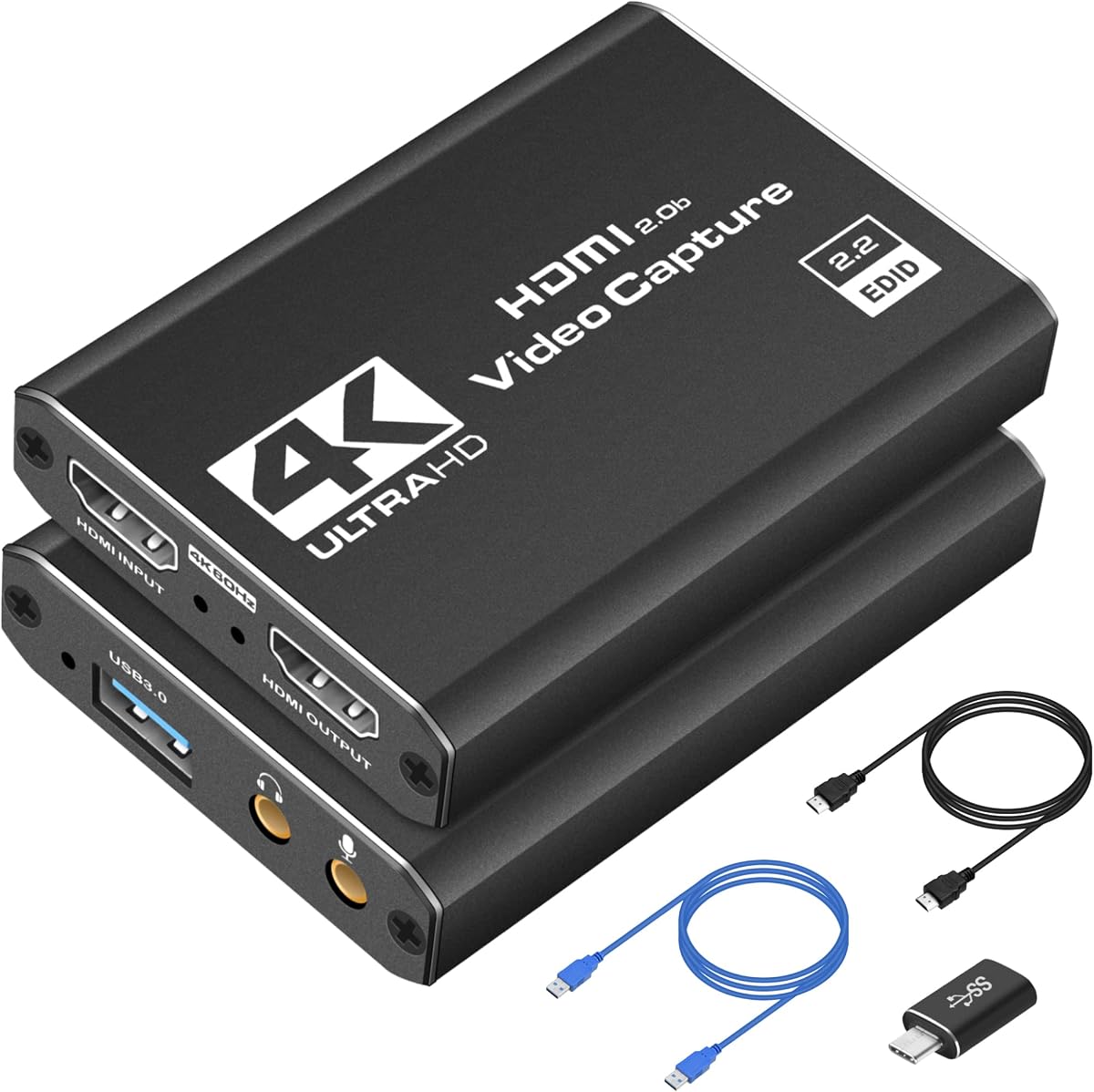
The 4K HDMI Capture Card delivers 1080P 60FPS recording with audio monitoring features. It has a 4.6 rating and works immediately on Linux with USB 3.0.
We may earn a commission when you buy through this link, at no additional cost to you.
Its 3.5mm mic input and headphone output enable synchronized audio video streaming. The package includes cables and a manual for quick setup.
While the input may have minor latency it offers solid value with an 18-month warranty. It suits gaming teaching and conferencing needs.
We suggest this for users needing audio control. It provides reliable performance and warranty support for Linux projects.
Headphone output allows real time audio monitoring.
Backed by an 18-month warranty and support.
We may earn a commission when you buy through this link, at no additional cost to you.
The AVerMedia Live Gamer Ultra S offers stunning 4K60 HDR passthrough and 5.1 audio capture. It holds a 4.2 rating and supports ultrawide inputs.
We may earn a commission when you buy through this link, at no additional cost to you.
Its VRR passthrough ensures smooth gameplay on supported displays while streaming center aids OBS workflows. It supports Windows macOS and iPadOS beyond Linux.
While its higher cost and complex setup may deter casual users it excels for high-end content. It handles modern consoles with VRR and HDR.
We recommend this for professionals needing top specs. It provides premium features for serious Linux streaming or recording.
VRR and HDR passthrough support modern displays.
Captures 5.1 channel audio for immersive sound.
We may earn a commission when you buy through this link, at no additional cost to you.
The AVerMedia StreamLine MINI+ offers ultra-low latency streaming with 4K60 HDR passthrough. It holds a 4.0 rating and includes a beginner-friendly streaming center.
We may earn a commission when you buy through this link, at no additional cost to you.
Its compact size fits easily on desks while passthrough supports 1440p144 or 1080p240 gameplay. It works with OBS CameraFi and Camo Studio.
While it has a lower rating and may need specific OS versions it suits streamlined setups. It captures smoothly without complex manual configuration.
We suggest this for those valuing simplicity. It balances portability with solid performance for Linux content.
Supports up to 1440p144 passthrough for smooth play.
Streaming Center simplifies go-live steps for users.
We may earn a commission when you buy through this link, at no additional cost to you.
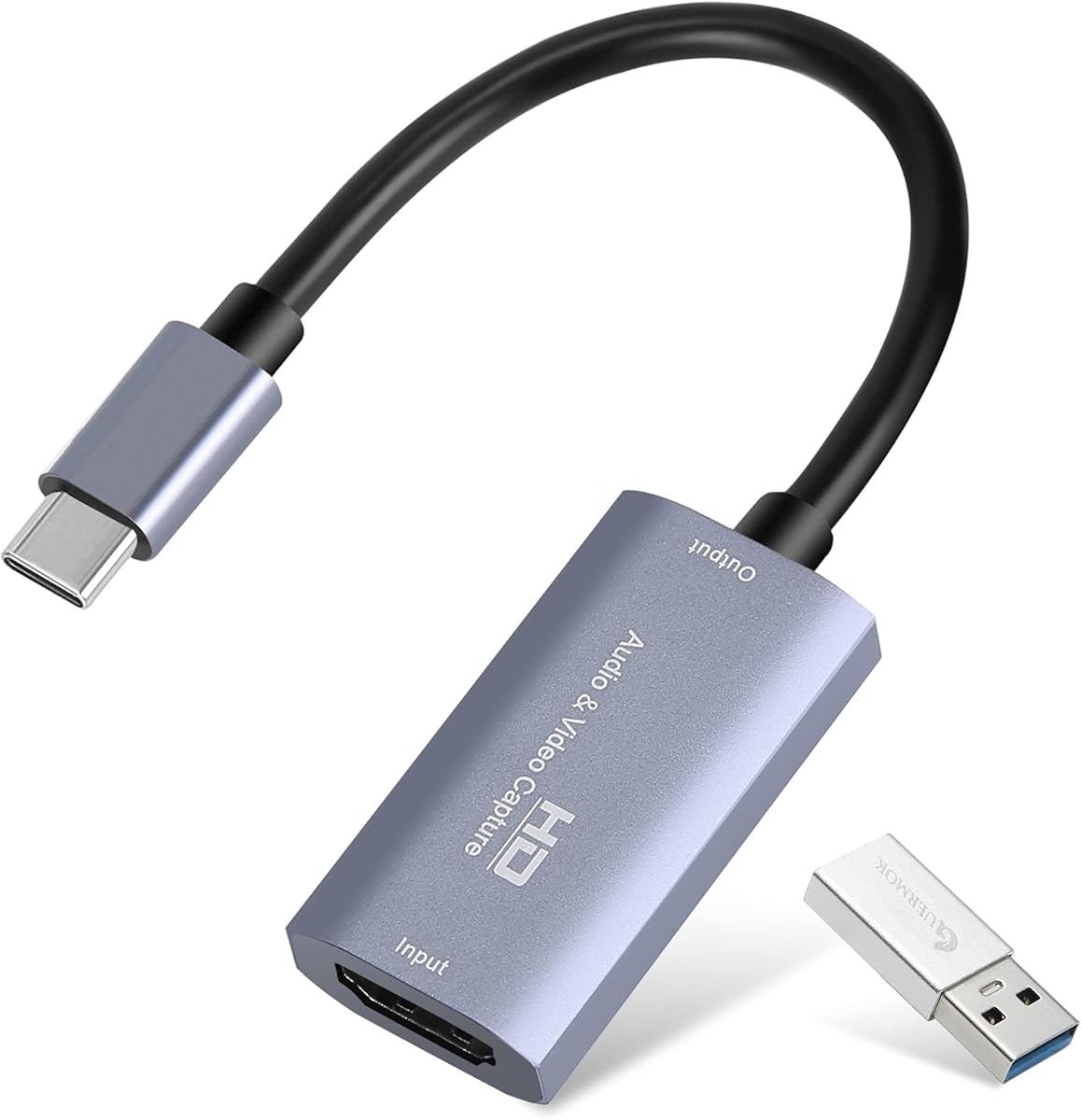
The Guermok Video Capture Card delivers 1080P 60FPS or 2K 30FPS output with USB-C support. It has a 4.4 rating and suits live streaming or recording.
We may earn a commission when you buy through this link, at no additional cost to you.
Its aluminum alloy casing aids heat dissipation and it supports most systems including Linux via OBS. It is portable for on-the-go capture.
While users may need to restart OBS after setup and include an adapter it works reliably. The ultra-low latency avoids lag during live play.
We recommend this for versatile Linux use. It offers strong value with solid build quality for streaming.
Aluminum alloy casing prevents overheating during long use.
Small and lightweight design makes it easy to carry.
We may earn a commission when you buy through this link, at no additional cost to you.
Selecting the right capture card for Linux involves evaluating several technical factors to ensure compatibility and performance.
Linux relies heavily on UVC protocol support for plug and play functionality without proprietary drivers. Verify that the card explicitly lists Linux compatibility in its documentation to avoid extra installation steps.
Look for devices that work out of the box with OBS or VLC on your distribution for the smoothest experience.
Differentiate between input resolution and output capture resolution as some cards accept 4K input but only output 1080P or 2K. Decide if you need 60FPS for fast gaming or if 30FPS is sufficient for tutorials.
Prioritize models that support your target streaming resolution to maintain quality without overwhelming system resources.
Check for mic-in ports or headphone jacks to add commentary or monitor audio in real time. This feature is crucial for live streams where voice and game audio must stay synchronized.
Devices with 3.5mm ports simplify setup by eliminating extra adapters for external microphones or headsets.
USB 3.0 ports are essential for high bandwidth video transfer without frame drops. Confirm your host device has the correct port type to avoid falling back to slower USB 2.0 speeds.
Cards with both USB-A and USB-C offer better flexibility depending on your laptop or desktop configuration.
Metal casings such as aluminum alloy help dissipate heat during prolonged capture sessions preventing thermal throttling. Plastic enclosures may work but can feel less durable over time.
Look for compact designs that fit in your bag if you plan to stream or record outside your home.
Ensure the card works with your preferred Linux software like OBS or Kdenlive and supports your gaming consoles. Some devices restrict certain platforms like Fire TV Stick so check exclusions.
Verify that the output works seamlessly with your streaming services to avoid format mismatches.
HDMI loop-out or passthrough allows you to monitor gameplay without delay while capturing. This is vital for competitive gaming where split-second reactions matter.
Low latency specifications ensure the video stream remains synced with the game screen for a better viewer experience.
A longer warranty period like eighteen months indicates manufacturer confidence and protects your investment. Good customer support is helpful if you encounter driver or recognition issues on Linux.
Consider brands with clear return policies to mitigate risks if the device does not function as expected.
Connect the HDMI source from your console or camera directly to the capture card and attach the USB cable to your Linux computer. Open your preferred capture software like OBS Studio and add a new video capture source to select the device.
Configure your desired resolution and frame rate in the software settings to match your streaming needs. Test the audio levels to ensure mic-in or game audio is captured clearly without background noise.
Keep the device in a well-ventilated area to prevent overheating during long sessions and store it in a protective case when not in use. Regularly check for firmware updates from the manufacturer to maintain compatibility with newer Linux kernels.
Most modern capture cards follow the UVC protocol which allows them to work plug and play without drivers on Linux distributions. Verify that the specific model explicitly supports Linux to avoid needing manual driver installations.
Yes many capture cards work with PS5 on Linux as long as HDCP is disabled on the console settings. Check the product details to confirm it supports the latest console firmware and streaming software like OBS.
USB 3.0 ports provide the necessary bandwidth for high resolution video capture without dropping frames. Using a USB 2.0 port may limit resolution to 1080P30Hz or cause lag during recording.
Almost all compatible USB capture cards are recognized as video devices within OBS Studio on Linux distributions. Simply add a Video Capture Device source to select your card and adjust settings.
Use a capture card with a built-in mic-in port or connect an external audio interface to your system. In OBS add a separate audio input capture source to ensure your voice is recorded alongside the game.
Capture cards feed video into software like OBS which then allows streaming to Twitch. The card itself does not stream directly but provides the clean video feed for your streaming software.
We explored ten capture cards that offer reliable Linux support for streaming and recording. Our top picks include the UGREEN 4K@30Hz for overall performance and the Papeaso for budget friendly access.
Prioritize UVC support resolution output and audio features based on your specific workflow needs. Ensuring compatibility with your Linux distribution and software will prevent unnecessary troubleshooting.
Prices and availability may change so double check product details before finalizing your purchase. Select a model that balances cost and quality to enhance your content creation journey.