
Canon PIXMA TR7120
4.3Editor score
Affordable versatile option
Compact stylish design
Easy mobile printing
This guide compares the top all in one printer for MacBook Air users, evaluating connectivity, print quality, and essential features for seamless Mac integratio
Finding the right all in one printer for MacBook Air requires careful consideration of wireless protocols, driver support, and design aesthetics to match your workflow.
We evaluated ten leading models based on AirPrint compatibility, scanning capabilities, and ease of setup to ensure they work flawlessly with your macOS environment.
Each pick highlights unique strengths for home offices, though specific pricing fluctuates frequently so always verify current deals before making your final purchasing decision.
4.3Editor score
3.9Editor score

4.3Editor score
The following table provides a side by side comparison of all ten models highlighting key specifications and standout features for your quick reference.




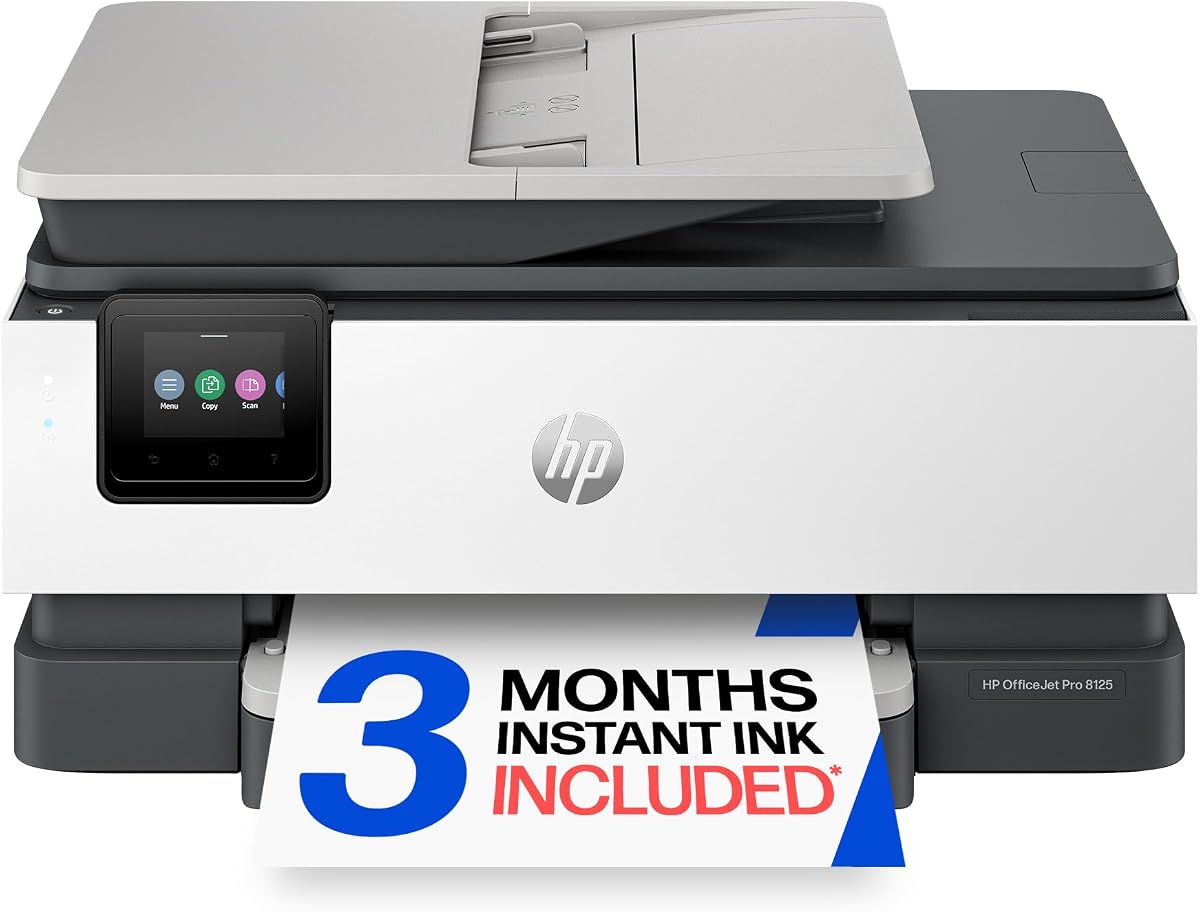
The HP OfficeJet Pro 8125 stands out as a robust choice for Mac users needing professional quality prints with seamless wireless integration.
We may earn a commission when you buy through this link, at no additional cost to you.
Its high speed output and dual band Wi-Fi ensure your documents move from screen to paper efficiently while minimizing network congestion.
While it requires genuine HP cartridges for operation, the Instant Ink trial helps manage costs effectively during your initial usage period.
Ideal for busy home offices this model balances speed and features well to support productivity without compromising on print quality standards.
HP AI optimizes print formatting to remove unwanted content ensuring clean layouts for web pages and emails.
HP Wolf Essential Security protects your data by keeping your network safe from cyber threats during printing operations.
We may earn a commission when you buy through this link, at no additional cost to you.
The Epson EcoTank ET-2903 redefines value by including enough ink to last up to three years for most home office users.
We may earn a commission when you buy through this link, at no additional cost to you.
Its refillable tank system eliminates frequent cartridge replacements offering significant savings and convenience over the lifespan of the device.
Photo enthusiasts will appreciate the high resolution capability that produces stunning results on a wide range of media types available.
Best for high volume printing this model offers long term cost efficiency and environmental benefits while maintaining solid connectivity for Mac.
Join millions of owners reducing plastic waste by eliminating traditional cartridge waste with this supertank system.
Engineered with Heat-Free technology this printer features a permanent printhead designed to last the life of the unit.
We may earn a commission when you buy through this link, at no additional cost to you.
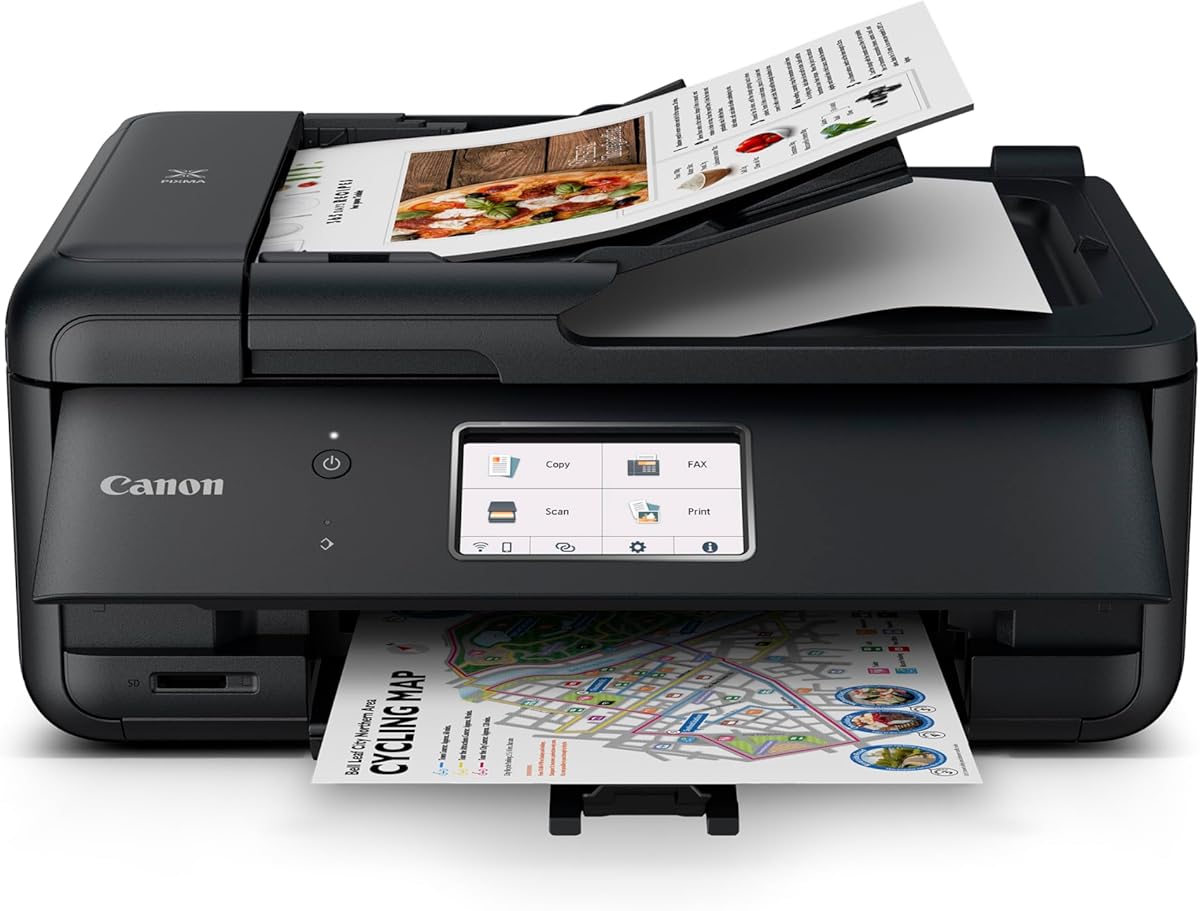
The Canon PIXMA TR7120 offers exceptional value for users seeking a reliable printer that integrates smoothly with macOS systems.
We may earn a commission when you buy through this link, at no additional cost to you.
Its compact design fits perfectly into small workspaces while dual band Wi-Fi ensures stable connections for mobile printing tasks.
Automatic two sided printing helps save paper and costs making it a practical choice for everyday document handling needs.
Perfect for students and light office users this model delivers crisp vibrant prints without the bulk of larger professional machines.
Experience sharp text and vivid colors thanks to its innovative hybrid ink system optimized for quality results.
Print directly from your smartphone using the Canon PRINT App or AirPrint for seamless wireless document handling.
We may earn a commission when you buy through this link, at no additional cost to you.
The Canon PIXMA TS6520 features a distinct OLED display that simplifies navigation for Mac users managing various print tasks.
We may earn a commission when you buy through this link, at no additional cost to you.
Its hybrid ink system ensures sharp text and vivid colors making it suitable for both documents and occasional photo printing.
Automatic two sided printing reduces paper usage while the compact footprint ensures it fits comfortably on any desk setup.
Ideal for personal use this printer combines style and functionality though it lacks an auto document feeder for multi page scanning.
Monitor ink levels and adjust settings at a glance with the intuitive OLED display interface.
Print diverse media without borders up to 8.5 by 11 inches for creative professional needs.
We may earn a commission when you buy through this link, at no additional cost to you.
The Brother Work Smart 1360 delivers impressive speed for its size with up to 16 pages per minute black output.
We may earn a commission when you buy through this link, at no additional cost to you.
Users can print and scan directly from popular cloud apps enhancing workflow efficiency for remote workers and hybrid teams.
Despite its compact design it includes a 20 sheet ADF allowing for quick scanning of multi page documents without manual feeding.
Best for small offices this model offers a balance of speed and connectivity though the paper tray capacity is moderate.
Connect seamlessly to Google Drive Dropbox and Box for printing and scanning from the cloud directly.
Use the Brother Mobile Connect app to manage device settings and monitor ink usage from your phone.
We may earn a commission when you buy through this link, at no additional cost to you.
The HP Envy 6155 focuses on visual fidelity with True-To-Screen Tech ensuring photos look vibrant and match your display.
We may earn a commission when you buy through this link, at no additional cost to you.
Its large touchscreen offers smooth navigation and instant ink trial helps manage costs while you evaluate long term usage needs.
Sustainable design features including recycled plastic content appeal to eco-conscious users seeking high quality printing solutions.
Perfect for creative work this printer excels at borderless photos and documents though speeds are slower than business models.
HP P3 technology ensures print colors match your screen accurately for professional looking outputs.
HP AI optimizes formatting to remove unwanted content so your prints look exactly how you want.
We may earn a commission when you buy through this link, at no additional cost to you.
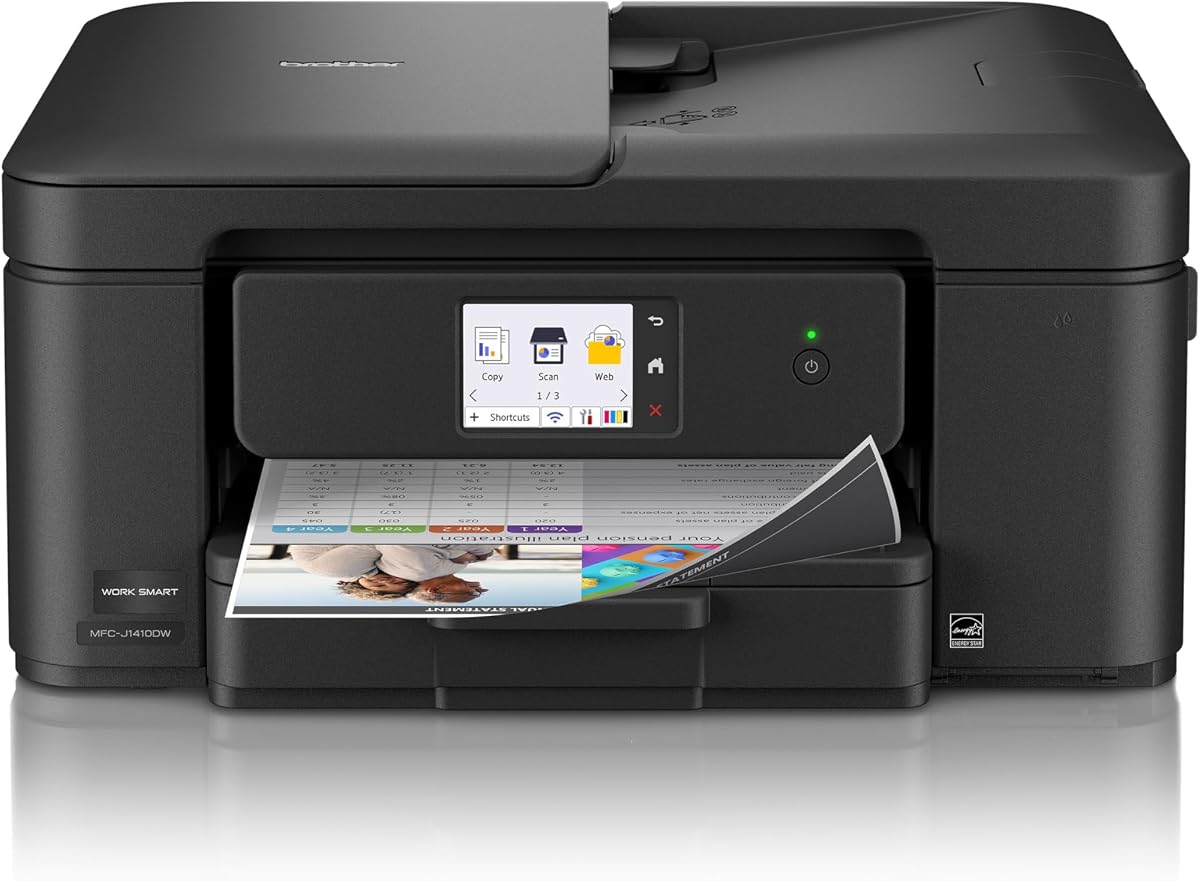
The Brother Work Smart 1410 combines a large touchscreen with fast printing speeds for efficient document handling in any home office.
We may earn a commission when you buy through this link, at no additional cost to you.
Its seamless cloud app integration allows users to print and scan from various platforms without needing physical cables or software.
Automatic two sided printing reduces paper waste while the high speed ensures you do not wait long for large document sets.
Ideal for professionals this model offers robust features though users should review subscription trial terms before committing to usage.
Productivity focused features like ADF and duplex printing streamline your daily document processing tasks.
Interface via wireless network or USB to suit your preferred setup and device configuration.
We may earn a commission when you buy through this link, at no additional cost to you.
The HP OfficeJet 3830 is a reliable compact printer designed for simplicity with seamless AirPrint and mobile printing capabilities.
We may earn a commission when you buy through this link, at no additional cost to you.
Its compatibility with Alexa allows voice enabled commands and notifications for a hands free printing experience at home.
Quiet mode helps minimize noise during operation making it suitable for shared spaces or quiet home office environments.
Best for basic needs this model offers essential functions without complexity though it lacks advanced features found in newer units.
Works with Alexa for smart voice commands and instant ink notifications directly from your device.
Print from anywhere using the HP ePrint app or AirPrint for seamless document handling.
We may earn a commission when you buy through this link, at no additional cost to you.
The Canon PIXMA TR8620a offers a comprehensive five-in-one feature set including fax and high speed printing for office needs.
We may earn a commission when you buy through this link, at no additional cost to you.
Alexa integration enables smart reorders ensuring you never run out of ink without manual intervention or complex management tasks.
Its SD card slot provides flexibility for printing photos directly from memory cards without needing a computer connection at all.
Ideal for offices needing fax and speed this model is feature rich though it may require more setup effort for new users.
Alexa smart reorders ensure you never have too much or too little ink supplies ever.
Print directly from SD cards or via cloud to adapt to various workflows and media sources.
We may earn a commission when you buy through this link, at no additional cost to you.
The Canon PIXMA TR4720 is an affordable option that includes essential fax and mobile printing features for basic home offices.
We may earn a commission when you buy through this link, at no additional cost to you.
It supports borderless prints and offers duplex printing for efficient document handling while keeping setup simple for new users.
Alexa enabled notifications help track ink levels and reorder supplies ensuring you stay prepared without manual checks.
Best for low volume users this model provides essential features at a lower cost though speeds are slower than other models.
Designed for easy installation and replacement this printer offers a budget friendly entry into home printing.
Alexa smart reorders help you stay stocked on supplies without manual effort or subscription worries.
We may earn a commission when you buy through this link, at no additional cost to you.
Selecting the right printer for your MacBook Air involves evaluating compatibility features and long term costs to ensure seamless integration.
Ensure the printer supports dual-band Wi-Fi and AirPrint to guarantee smooth wireless printing from your MacBook Air without complex driver setups.
Look for models that automatically detect and resolve connection issues to minimize downtime during your daily workflow operations.
Consider pages per minute ratings especially if you frequently print large reports or presentations requiring quick turnaround times.
Higher speeds may come at a premium but save valuable time during busy workdays when immediate results are essential.
Decide between traditional cartridges and tank systems based on your expected print volume and budget for ongoing supply costs.
Tank models often offer lower per-page costs while cartridges provide convenience for users with lower printing needs.
Measure your workspace carefully to ensure the printer fits comfortably without overwhelming your desk or home office setup.
Compact designs are essential for MacBook Air users prioritizing portability and minimal desktop footprint.
An auto document feeder is crucial for scanning or copying multi-page documents efficiently without manual page handling.
Without this feature you may face tedious manual feeding for every single sheet when processing longer reports.
Verify that the printer supports mobile printing apps or protocols like AirPrint for seamless workflow from iOS devices.
This feature ensures you can print directly from your phone or tablet alongside your MacBook Air.
A color touchscreen simplifies navigation and status checks allowing you to manage tasks directly from the device itself.
Intuitive interfaces reduce the learning curve and help you adjust settings quickly when needed.
Consider eco-friendly features like energy-efficient modes or recyclable materials to reduce your environmental footprint.
Many models now offer recycled plastic components which align well with sustainable office practices.
Start by connecting your printer to your Wi-Fi network and ensuring it is visible to your macOS device before attempting any prints.
Run test pages after initial setup to verify print quality and alignment while keeping ink cartridges properly seated to avoid clogs.
Clean the scanner glass and printer exterior regularly with a soft lint-free cloth to maintain optimal performance and clear image output.
Most modern models listed here support AirPrint ensuring seamless integration with macOS and iOS devices without needing extra drivers. Always verify specific AirPrint support on product details pages before purchase.
Check the product specifications for AirPrint or macOS compatibility statements. Most contemporary models work out of the box with recent macOS versions for easy wireless printing.
Tank-based models like Epson EcoTank often provide better long-term value due to high capacity ink refills. Traditional cartridge printers may be cheaper upfront but cost more over time.
Yes many of these models support borderless printing and high-resolution output suitable for photos. Ensure you use photo paper and check supported media sizes before printing.
An auto document feeder is necessary if you frequently scan or copy multi-page documents without manual effort. For single page tasks it is less critical and adds to the printer cost.
Restart both the printer and your router to refresh the connection. Ensure your MacBook Air and printer are on the same network band for optimal communication.
Choosing the right printer depends heavily on your specific needs whether that is speed ink savings or compact design for your MacBook Air setup.
Prioritize wireless reliability and print quality to ensure your documents meet professional standards without frustrating connectivity issues during important tasks.
Prices and availability fluctuate regularly so always check current deals and specs before finalizing your decision to get the best possible value.