
Thermalright Trofeo Vision LCD AIO Display 9.16" PC Monitor
4.3Editor score
9.16 inch wide screen
USB-C plug and play
TRCC software support
Adding an LCD screen to your PC case transforms a standard build into a dynamic showcase. These displays let you monitor temperatures, track performance metrics, and play custom animations directly inside your chassis.
We evaluated ten popular models based on resolution, connectivity options, software support, and ease of installation. Our goal is to help you choose a screen that fits your case and workflow.
Each pick highlights key strengths and potential trade-offs to guide your decision. Note that prices fluctuate frequently, so check current listings before purchasing to ensure you get the best value.
4.3Editor score

4.4Editor score

4.5Editor score
As an Amazon Associate we earn from qualifying purchases.
This side-by-side comparison highlights the key specifications and features of the top ten LCD screens available for PC cases. Use this table to quickly identify which model meets your specific needs.




The Lian Li SM088X stands out as a top choice for enthusiasts wanting a versatile LCD screen for PC Case. With an 8.8 inch panel and strong software support, it offers a polished experience for monitoring stats.
We may earn a commission when you buy through this link, at no additional cost to you.
Its standout quality is the L-Connect 3 software, which allows deep customization of themes and layouts. The built-in ARGB strip enhances aesthetics, and the flexible mounting ensures it fits various case designs.
While installation requires attention to screw types to avoid damage, the versatility outweighs this minor hurdle. Users should follow the guide closely to ensure secure attachment and optimal viewing angles.
Buyers seeking a balance of quality and flexibility will appreciate this model. It is highly recommended for those who want a reliable secondary display that integrates seamlessly with their system.
The diffused ARGB lighting strip syncs with your system, creating a cohesive look that elevates your build.
Adjustable brackets and adhesive pads allow you to mount the screen securely on fans or flat surfaces.
We may earn a commission when you buy through this link, at no additional cost to you.
The darkFlash V92 offers an impressive 9.2 inch ultra-wide display specifically designed for PC case monitoring. It delivers sharp visuals and supports extensive customization through its dedicated software.
We may earn a commission when you buy through this link, at no additional cost to you.
Its 1920×462 resolution provides ample space for multiple widgets, including weather and stock updates. The slim aluminum body ensures it fits neatly inside most cases without obstructing airflow.
However, users must keep the Station Space software running to display data, which uses minimal system resources. Compatibility is limited to Windows systems, excluding macOS or Linux users.
This screen is ideal for builders looking for a wide viewing area without complex setups. It balances affordability with robust features for those primarily focused on system monitoring.
The 1920×462 resolution allows you to display multiple data streams simultaneously in a single view.
You can connect via USB-C externally or use an internal 9-pin header for a cleaner internal setup.
We may earn a commission when you buy through this link, at no additional cost to you.
The WOWNOVA 8 Inch screen distinguishes itself by supporting an extended desktop mode, allowing it to function as a true secondary monitor. This feature is rare in PC case displays and offers significant utility.
We may earn a commission when you buy through this link, at no additional cost to you.
Users can switch to desktop mode easily, enabling multitasking without needing GPU ports. The single USB-C cable setup simplifies installation, while dynamic video themes add a unique touch to the interface.
The software requires some initial configuration, but offers extensive customization once set up. Brightness adjustment and energy-saving features ensure it is comfortable to view during long sessions.
Those looking for a screen that doubles as a productivity tool should consider this option. Its combination of flexibility and ease of use makes it a standout in the category.
Switch to desktop mode to use the screen as an extended display for apps or monitoring tools.
Upload custom videos or GIFs to create a personalized experience that reflects your gaming style.
We may earn a commission when you buy through this link, at no additional cost to you.
The wisecoco 12.6 Inch screen is engineered specifically for the Hyte Y60 case, ensuring a seamless fit without extra modifications. It transforms the case panel into a functional media and stats display.
We may earn a commission when you buy through this link, at no additional cost to you.
Its built-in speakers provide audio output directly from the case, saving desk space. The HDMI input allows it to be used independently on a desk if desired, adding to its versatility.
While optimized for the Y60, users must ensure they have a Mini HDMI cable for connection. The installation is straightforward with included tools, making it accessible for most builders.
If you own a Hyte Y60 and want a dedicated display solution, this screen is an ideal match. It offers a balance of form and function tailored to specific case aesthetics.
Designed specifically for the Hyte Y60, it mounts perfectly to the panel without needing custom brackets.
Dual built-in speakers allow you to hear system alerts or media without external peripherals.
We may earn a commission when you buy through this link, at no additional cost to you.
The Hosyond 8.8 Inch screen features a responsive touchscreen and HDMI input, making it versatile for various devices including Raspberry Pi. It offers FHD clarity suitable for both system stats and media viewing.
We may earn a commission when you buy through this link, at no additional cost to you.
Its driver-free plug-and-play design simplifies setup significantly. The low power consumption is beneficial for keeping heat down inside a PC case while maintaining clear visuals.
Although the touch feature is useful on desktop setups, it may be less practical inside a closed PC case. Users should consider if physical interaction is a priority for their build.
For hobbyists who want a screen that works with multiple systems, this is a strong option. It bridges the gap between a standard monitor and a dedicated sensor panel.
The HDMI input and low power design allow it to work with Pi, consoles, or PCs alike.
A capacitive touchscreen provides smooth control when used on a desk or mounted openly.
We may earn a commission when you buy through this link, at no additional cost to you.
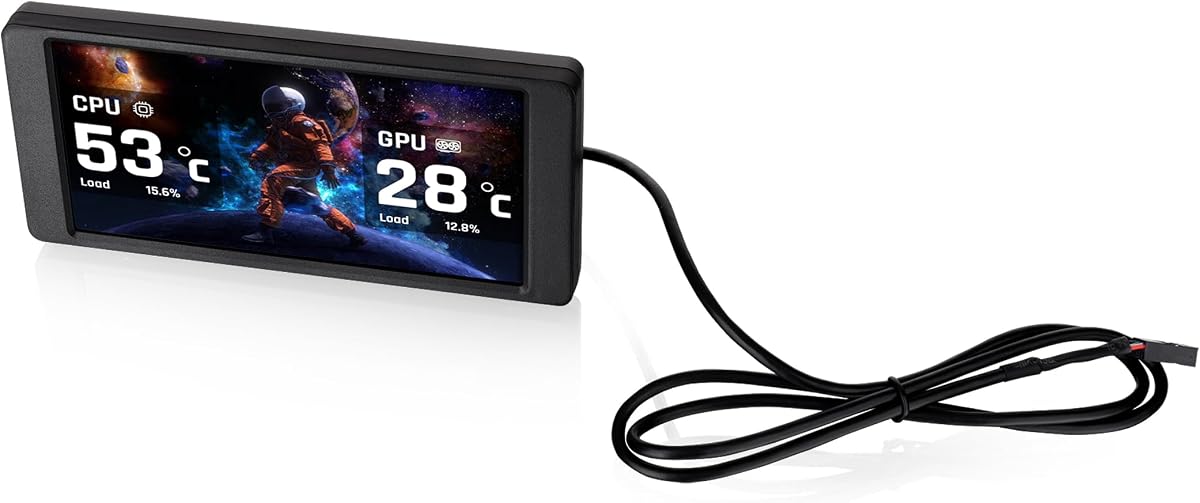
The Thermalright Trofeo Vision delivers a large 9.16 inch display at an accessible price point, ideal for budget-conscious builders. It uses a simple USB-C connection, reducing complexity during installation.
We may earn a commission when you buy through this link, at no additional cost to you.
Its TRCC software supports multiple themes and DIY options, allowing you to customize the interface to your liking. The slim design ensures it fits easily inside most PC cases without obstruction.
While the software ecosystem is smaller compared to others, it covers essential monitoring needs effectively. Users may need to explore community forums for more advanced customizations.
This model is perfect for those prioritizing screen size and ease of use over advanced features. It offers excellent value for anyone looking to add a large display to their setup.
Get a large display with strong hardware specs without spending a premium on branded ecosystem software.
USB-C connectivity ensures you can connect and start monitoring immediately without extra cables.
We may earn a commission when you buy through this link, at no additional cost to you.
The Thermaltake 6.0 Inch kit is designed for View 370 and 390 series cases, providing seamless integration with existing hardware. Its upgraded software offers better control and compatibility.
We may earn a commission when you buy through this link, at no additional cost to you.
You can upload various media formats to personalize the display, making it a great way to show off custom graphics. The screen provides real-time data on CPU and GPU status clearly.
However, the screen is smaller compared to newer models, which might limit widget placement. Users outside the Thermaltake ecosystem may find compatibility restricted.
If you already own compatible cases, this kit is a logical addition. It enhances the aesthetic and functional value of your build through unified control.
Sync the screen with your existing Thermaltake RGB ecosystem for consistent lighting effects.
Upload custom images and videos to make your PC case display truly unique.
We may earn a commission when you buy through this link, at no additional cost to you.
The GeeekPi 12.6 Inch screen combines high resolution with multi-touch capabilities, allowing for detailed interaction with content. It is tailored for Hyte Y60 cases with included mounting hardware.
We may earn a commission when you buy through this link, at no additional cost to you.
With built-in speakers, it adds an audio dimension to your build that standard panels lack. The plug-and-play design makes it easy to set up on compatible Windows systems.
While the touch feature is excellent for general use, accessing it inside a closed PC case is difficult. It is best suited for open-frame builds or desk use.
For users who value interactivity and large displays, this model is a strong choice. It offers a premium touch experience that few competitors can match.
Up to 10 points of multi-touch allow for complex gestures and navigation on the screen.
Dual built-in speakers provide sound without needing external speakers near your desk.
We may earn a commission when you buy through this link, at no additional cost to you.
The Thermalright TV 9.16 features a magnetic suction design that simplifies installation significantly. It allows you to move the screen easily within the case without tools.
We may earn a commission when you buy through this link, at no additional cost to you.
Its full color IPS panel ensures true color reproduction, ideal for displaying custom images and videos. The TRCC software offers multiple dynamic switching options for personalized themes.
While magnetic mounts offer flexibility, ensure the surface is clean and flat for the best hold. It is an excellent solution for modders who frequently change layouts.
Those who value tool-free access and reconfigurable designs should consider this model. It balances ease of use with strong visual performance for monitoring tasks.
The magnetic design allows for easy removal and repositioning without unscrewing brackets.
The IPS panel delivers full color accuracy and stable viewing angles for any content.
We may earn a commission when you buy through this link, at no additional cost to you.
The Thermalright Trofeo Vision 6.86 offers a compact solution designed for cooler mounts or limited spaces. It provides a magnetic panel screen that adheres securely to compatible surfaces.
We may earn a commission when you buy through this link, at no additional cost to you.
Despite its size, it supports DIY themes and dynamic image switching for personalization. This makes it a versatile option for smaller cases where larger screens might not fit.
Resolution is lower compared to larger models, which may limit the detail you can display. It is best suited for basic monitoring like temperatures and fan speeds.
For budget builds or small form factor systems, this model offers essential functionality. It allows you to add visual feedback without taking up significant space inside the chassis.
The compact size allows for installation in tight spaces where standard panels may not fit.
Compatible with magnetic chassis and cooler setups for flexible positioning.
We may earn a commission when you buy through this link, at no additional cost to you.
Selecting the right LCD screen involves evaluating dimensions, resolution, software features, and compatibility. This guide breaks down critical factors to help you make an informed decision.
Consider the available space inside your case and the level of detail you need. Larger screens like 12.6 inches offer more room for widgets but require significant clearance. Higher resolutions ensure text and graphs remain sharp at different viewing angles.
Prioritize size based on your case's interior layout to avoid obstruction.
Different brands offer unique software ecosystems for creating layouts and themes. Some require specific apps to run constantly, while others support standalone operation. Check if the software is user-friendly and supports custom images or videos.
Ensure the software is compatible with your operating system before purchasing.
Most screens use a USB 9-pin header or USB-C for power and data. Some models rely on external USB ports which may clutter your setup. Verify that your motherboard has available headers to support internal connections efficiently.
Internal connections are preferred for cleaner builds without external cable clutter.
Mounting mechanisms vary from brackets designed for specific cases to magnetic or adhesive options. A secure mount is essential to prevent vibration noise or accidental dislodging during transport. Some screens come with specific screws that should not be replaced with longer ones.
Choose a mounting system that fits your case style and ensures stability.
Extra features like touch support, built-in speakers, or secondary monitor modes add utility. These features often come with trade-offs in price or complexity. Touchscreens may be impractical inside closed cases but useful on open rigs.
Focus on features that genuinely enhance your workflow rather than optional extras.
Ensure the screen works with your specific case model or can be adapted easily. Some screens are made specifically for certain chassis like Hyte Y60 or Thermaltake series. Universal mounts offer flexibility but may lack the sleek fit of dedicated kits.
Check case dimensions and available mounting points before finalizing your choice.
Prices range from budget-friendly options to premium displays with advanced features. Determine your spending limit and compare features like resolution and software support. A mid-range model often offers the best balance between performance and cost.
Look for deals during sales events to get premium models at reduced rates.
First, connect the screen using the provided cable to a USB header or port. Install the required software from the manufacturer and run it to enable display features. Configure your layout to show relevant stats like CPU temperature and usage.
Second, adjust brightness settings to reduce eye strain during prolonged use. Some software includes auto-off features that can save energy when the system is idle. Ensure the screen is mounted securely to avoid vibration issues during operation.
Third, keep the surface clean with a soft microfiber cloth to avoid scratches. Avoid applying pressure to the screen itself as it is delicate compared to standard monitors. Regularly update the software to maintain compatibility with system drivers.
Most modern screens are plug-and-play via USB-C or standard headers. However, you will need specific software to customize the display layouts. Always download the latest version from the official manufacturer website.
These screens use minimal system resources as they are secondary displays. However, keeping the companion software running may consume a small amount of RAM and CPU. It typically does not affect gaming performance significantly.
Yes, many models support video playback if configured through their software. Some also function as extended monitors allowing full media use. Ensure your software supports dynamic content for the best experience.
Most packages include a USB-C cable or a 9-pin to USB adapter. Some also provide mounting hardware and drivers. Check the product details to confirm exactly what is included before buying.
Many screens are optimized for Windows systems. While some have basic Linux support, advanced features may not work as expected. Verify compatibility notes on the product page if you use an open-source OS.
Yes, several models support external mounting via adhesive or brackets. Some even function as standalone monitors for desk setups. Check the mounting specs to ensure it fits your desk environment safely.
Use a dry microfiber cloth to remove dust and fingerprints. Avoid harsh chemicals or alcohol as they may damage the coating. Never apply liquid directly to the panel to prevent internal damage.
You can use an external USB port with provided adapters for many models. Some manufacturers offer specific extension cables for external power. Check compatibility options if your motherboard lacks internal headers.
In summary, the Lian Li SM088X and WOWNOVA 8 Inch stand out for versatility and software support. Budget-conscious builders may prefer the Thermalright Trofeo Vision for its size and affordability.
Prioritize ease of installation and software compatibility when making your final selection. Consider how the screen will integrate with your existing hardware to ensure a smooth experience.
Remember that prices fluctuate frequently on online retailers. Always check current listings to secure the best value before completing your purchase decision.